

Overview
RabbitPay requires Razorpay API credentials to securely communicate with your merchant Razorpay account. These credentials authorize RabbitPay to perform key operations on your behalf, including:- Creating payments and orders
- Verifying payment signatures
- Processing refunds and captures
- Fetching transaction and settlement data
Razorpay displays the Key Secret only once at the time of generation. Make sure to copy and store it in a secure location immediately.
Prerequisites
Before you begin, ensure you have the following:- An active Razorpay Business account
- Admin access to the Razorpay Dashboard
- A verified business website linked to your Razorpay account
Step 1: Open Account Settings
Navigate to your Razorpay Dashboard and open the Account & Settings page. Navigation path:- Log in to your Razorpay Dashboard.
- In the left sidebar, scroll to the bottom.
- Click Account & Settings.
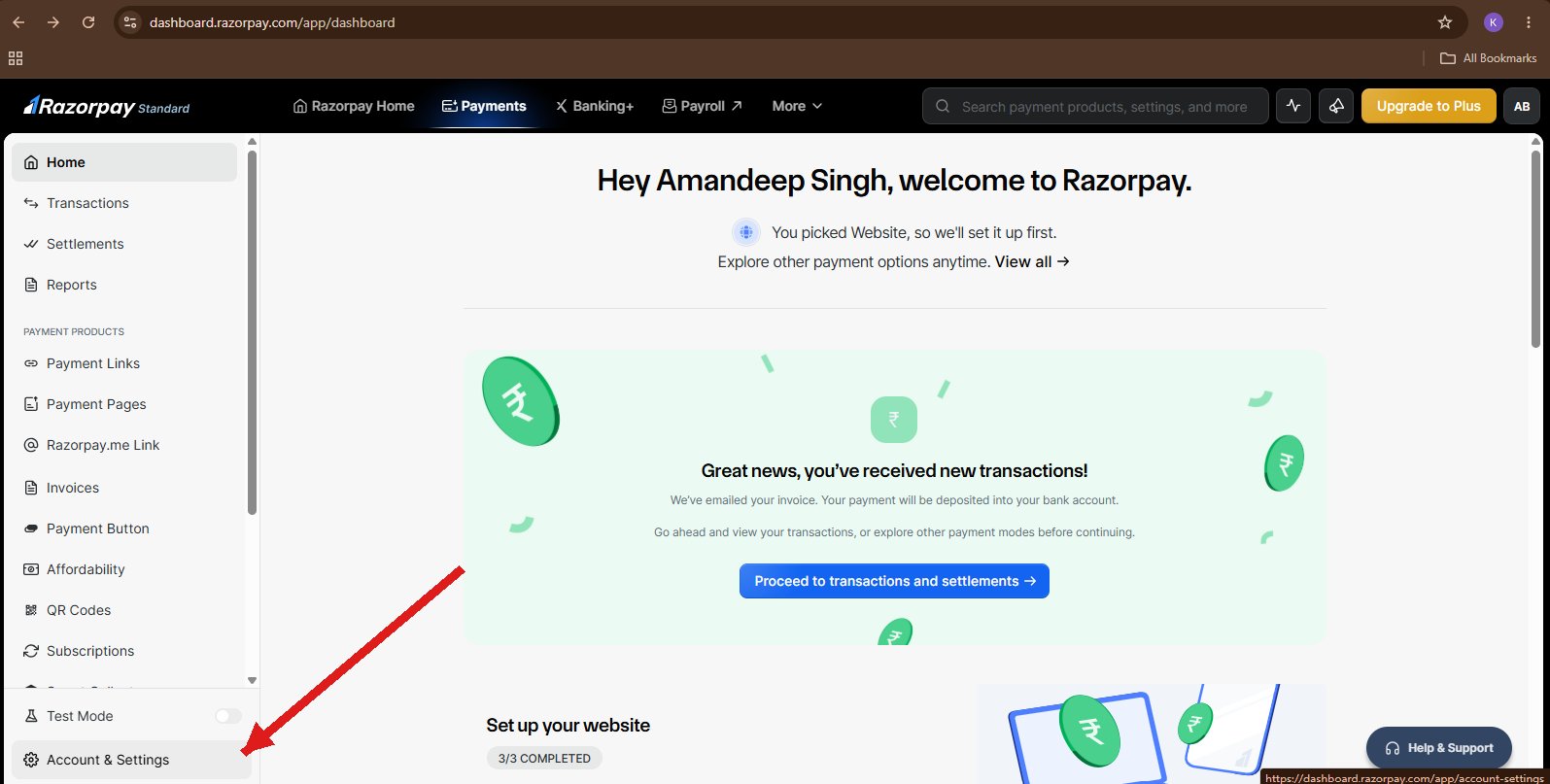
Figure 1: Navigate to Account & Settings from the Razorpay Dashboard.
Step 2: Open the API Keys Section
On the Account & Settings page, locate the Website and app settings card in the middle column and click the API keys link.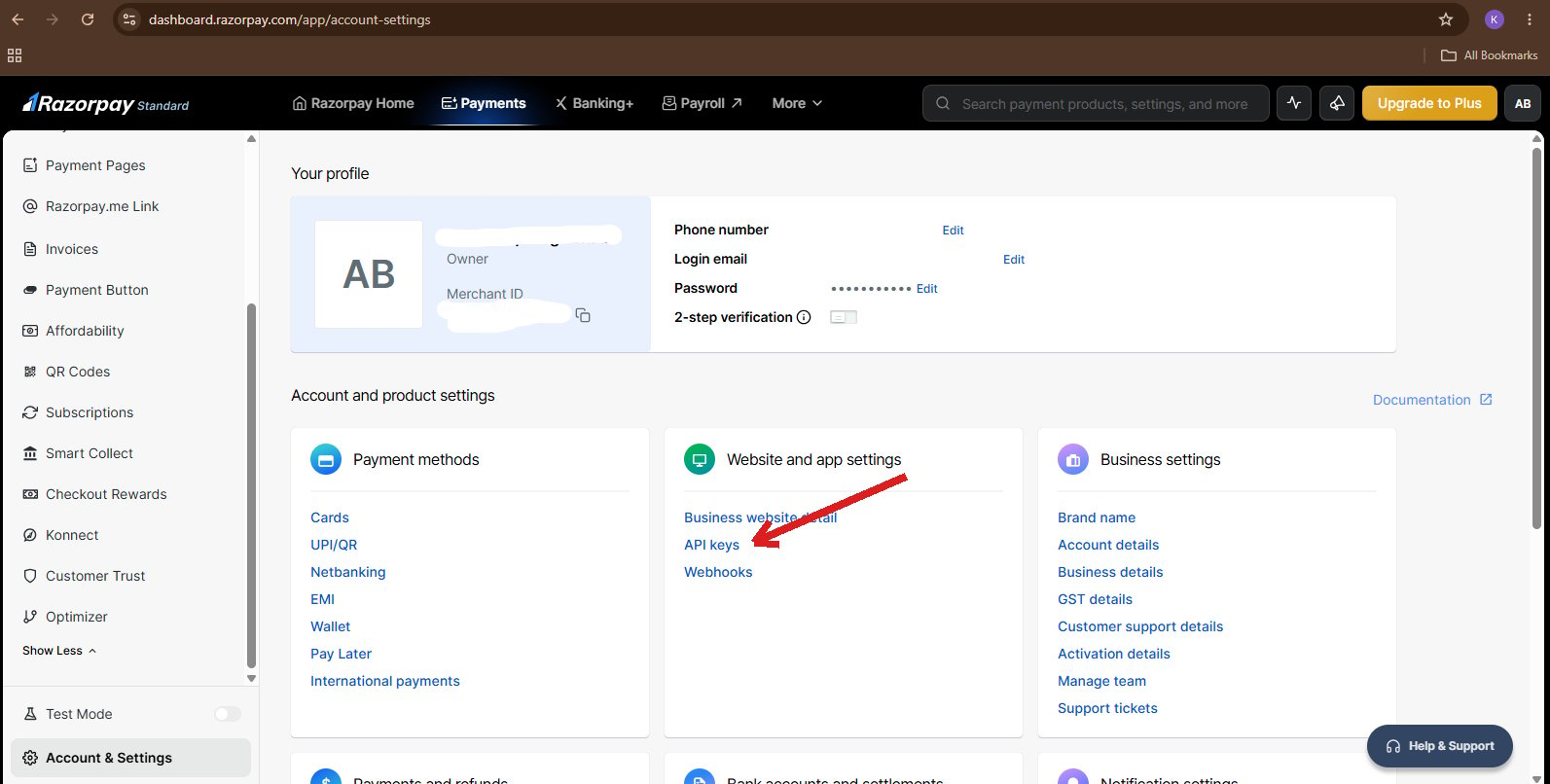
Figure 2: Click the API keys link under Website and app settings.
Step 3: Access API Keys & Integration
Once you are inside the API Keys & Integration page, you will see the section that contains the credentials required to integrate Razorpay with RabbitPay.- If API Keys have already been generated, you can continue using the existing Key ID and Key Secret.
- If you want to rotate credentials or have lost access to the previous secret, you can regenerate a new key pair using the Regenerate Key button.
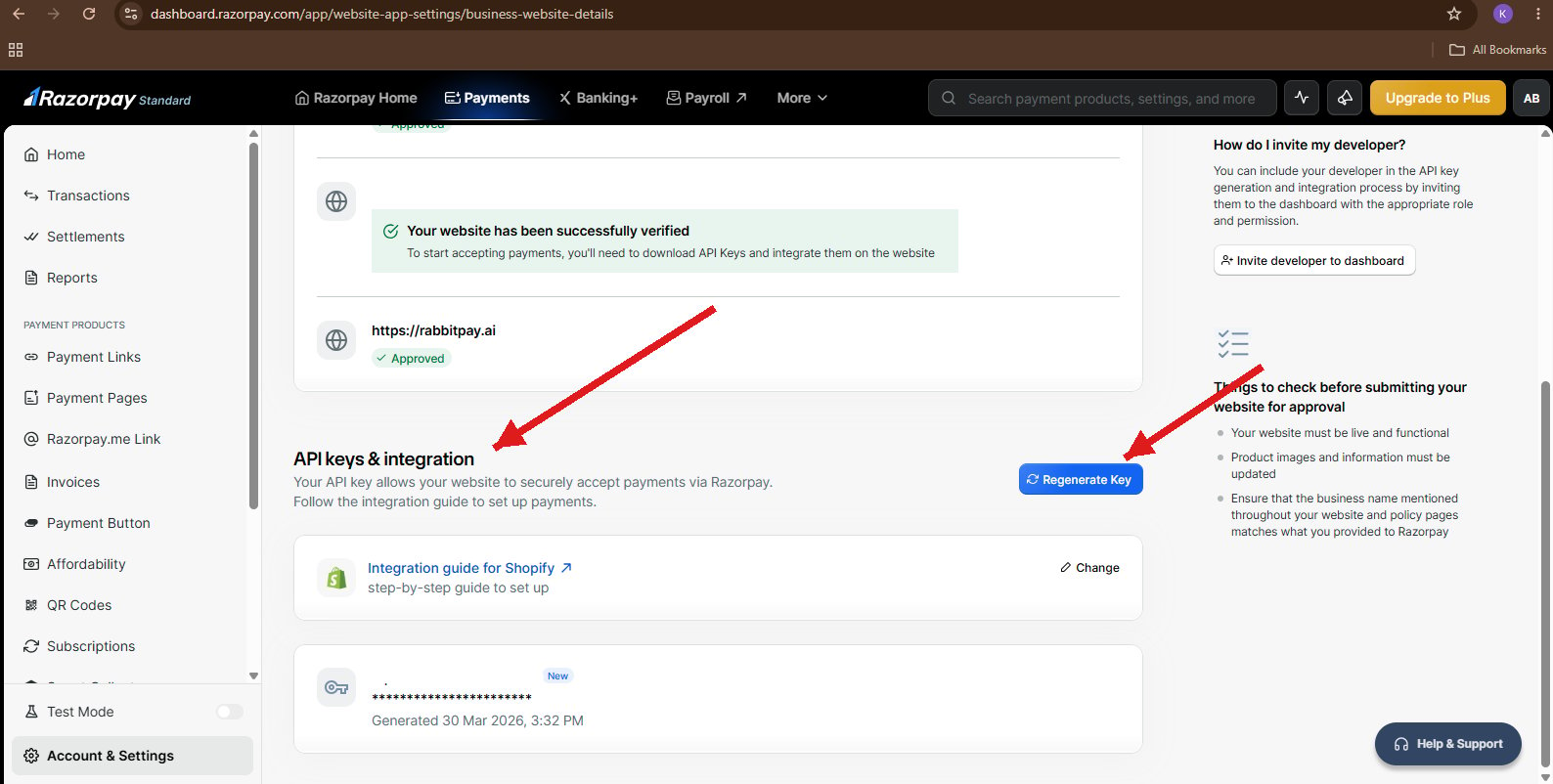
Figure 3: API Keys & Integration section showing the Regenerate Key option.
Regenerating an API key will immediately invalidate the previous Key Secret. Any integrations still using the old credentials will stop working until they are updated.
Step 4: Generate or Retrieve API Keys
Follow the steps below to generate or retrieve your Razorpay API credentials:- Locate the API Keys & Integration section on the Account & Settings page.
- If API Keys already exist, use the existing Key ID.
- If a new key pair is required, click Regenerate Key.
- Confirm the action in the popup that appears.
- Copy the newly generated Key ID.
- Copy the Key Secret immediately — Razorpay displays this value only once.
Important Notes
Security best practices for handling Razorpay API credentials:
- Store the API Key and Secret securely in an encrypted vault or environment variable.
- Never share the Key Secret publicly — treat it like a password.
- Do not expose API credentials in frontend applications, mobile apps, or public code repositories.
- If the Key Secret is lost, generate a new key pair — it cannot be recovered.
- Rotate your API keys periodically as part of your security hygiene.
Verification
Your setup is complete when all of the following are true:- ✅ A Razorpay API Key has been generated successfully.
- ✅ The Key ID has been copied and stored securely.
- ✅ The Key Secret has been copied and stored securely.
- ✅ The credentials are ready to be configured inside the RabbitPay dashboard.
Next Steps
With your Razorpay API credentials ready, continue the integration by configuring webhooks so RabbitPay can receive real-time payment events from Razorpay.Configure Razorpay Webhook
Set up the webhook endpoint and signing secret to receive Razorpay payment events in RabbitPay.