
Step 1: Open the RTO Suite
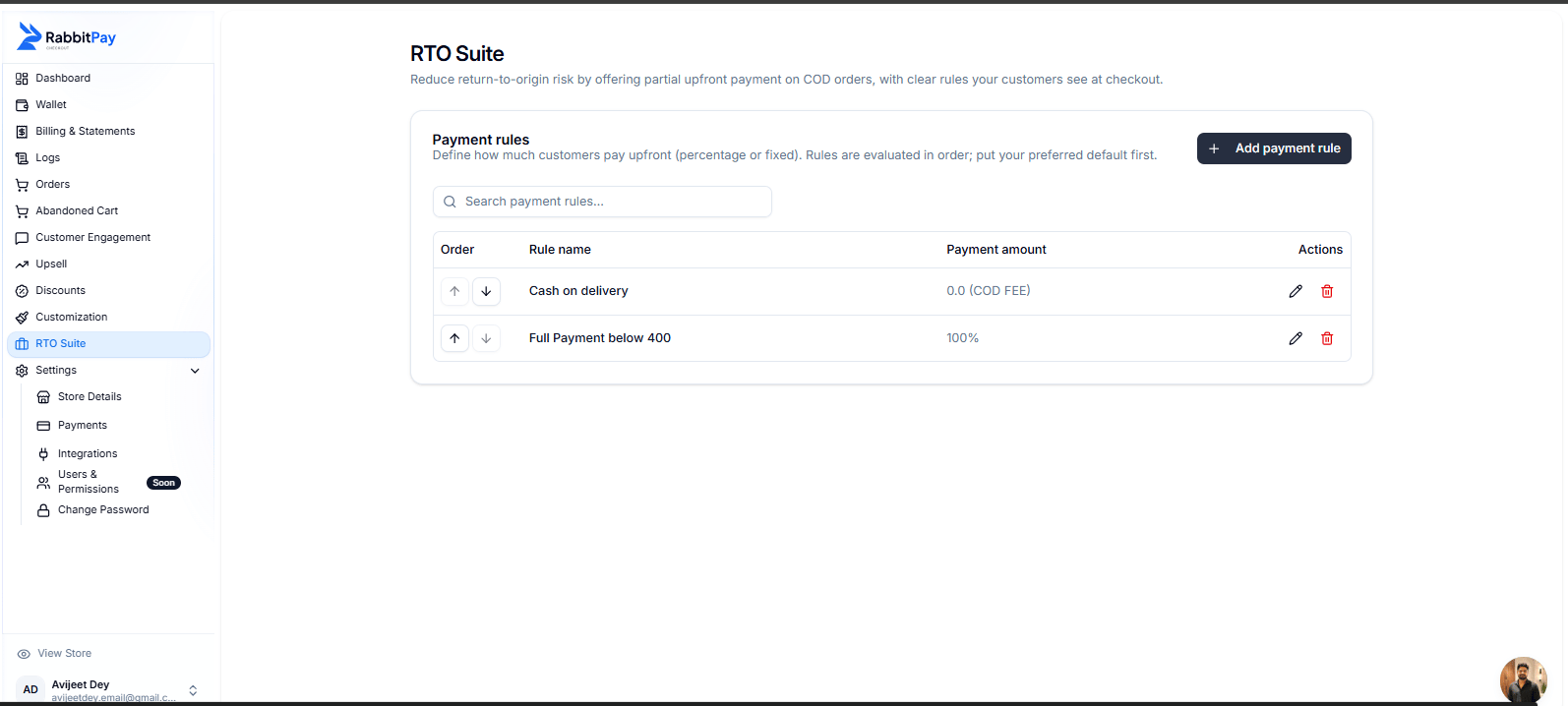
- Log in to your RabbitPay Dashboard.
- From the left sidebar, click RTO Suite.
- Find the payment rule where you want to offer a prepaid discount.
- Click the Edit (✏️) icon.
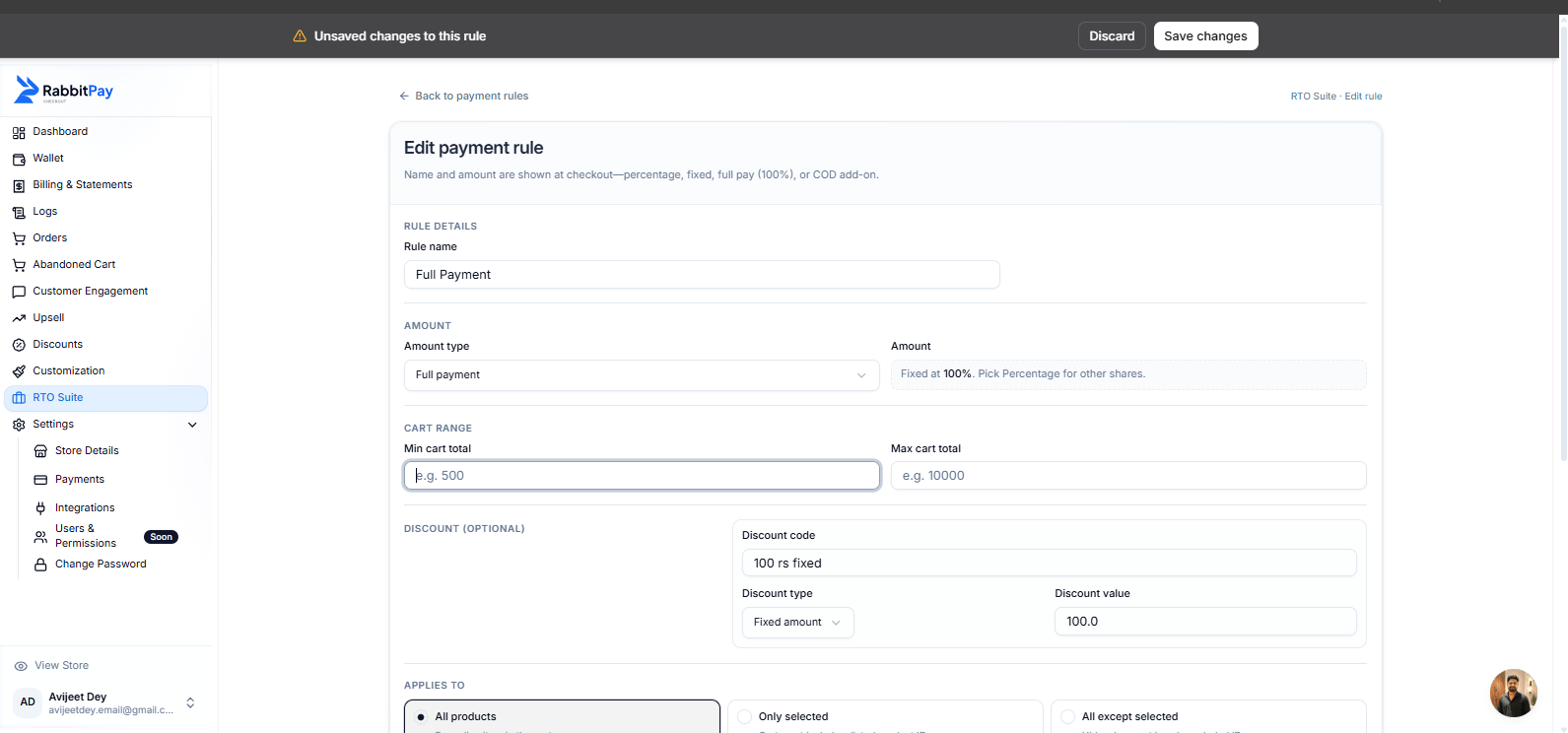
Step 2: Create or Edit a Payment Rule
You can:- Edit an existing payment rule, or
- Create a new payment rule by clicking Add payment rule.
- Rule name
- Amount type
- Minimum cart value (if required)
- Maximum cart value (if required)
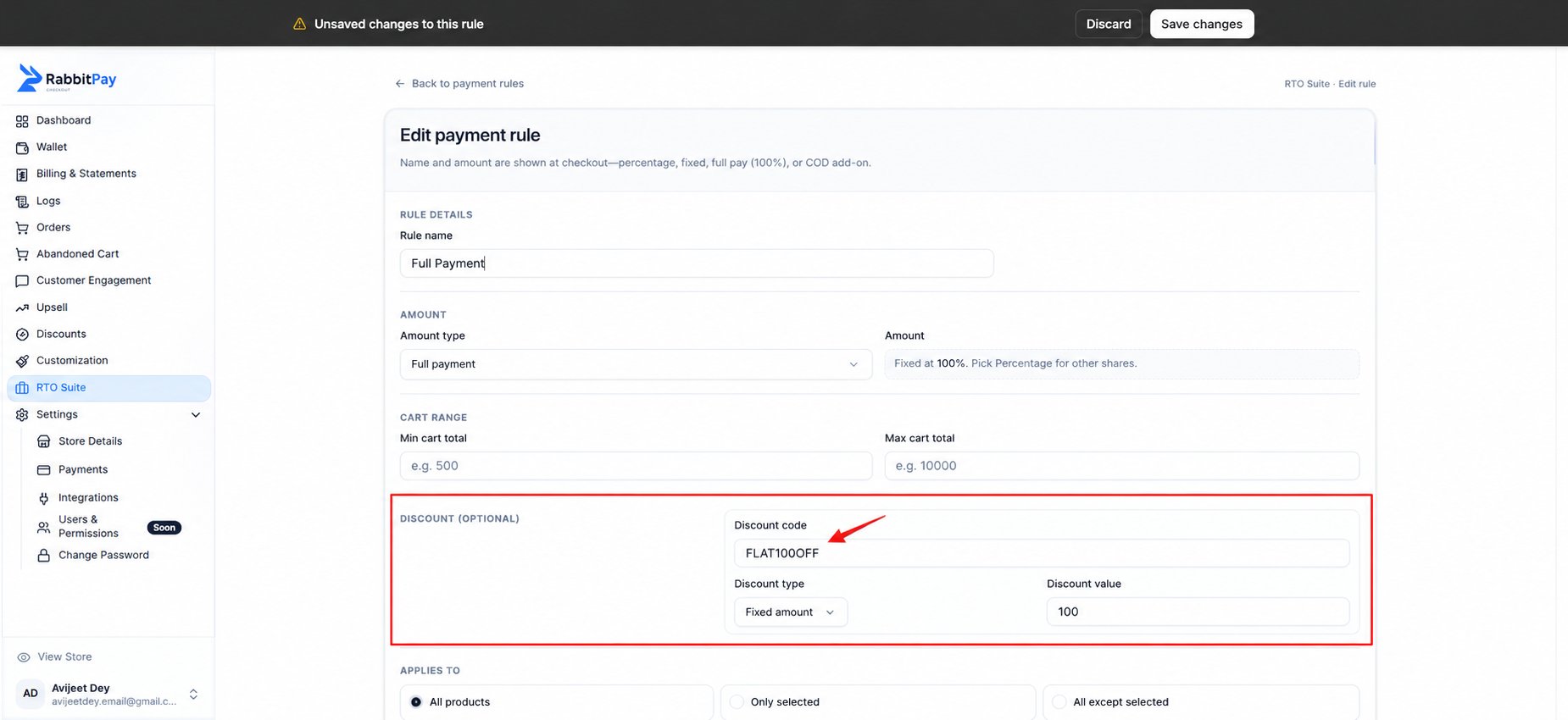
Step 3: Add the Prepaid Discount
Scroll down to the Discount section. Enter the following details:- Discount code – Enter the discount code you want to show.
- Discount type – Choose Fixed Amount or Percentage.
- Discount value – Enter the discount amount or percentage.
Example
Step 4: Save the Rule
After entering all the details, click Save changes. RabbitPay will now apply the discount whenever a customer chooses a prepaid payment method.Step 5: Verify the Discount
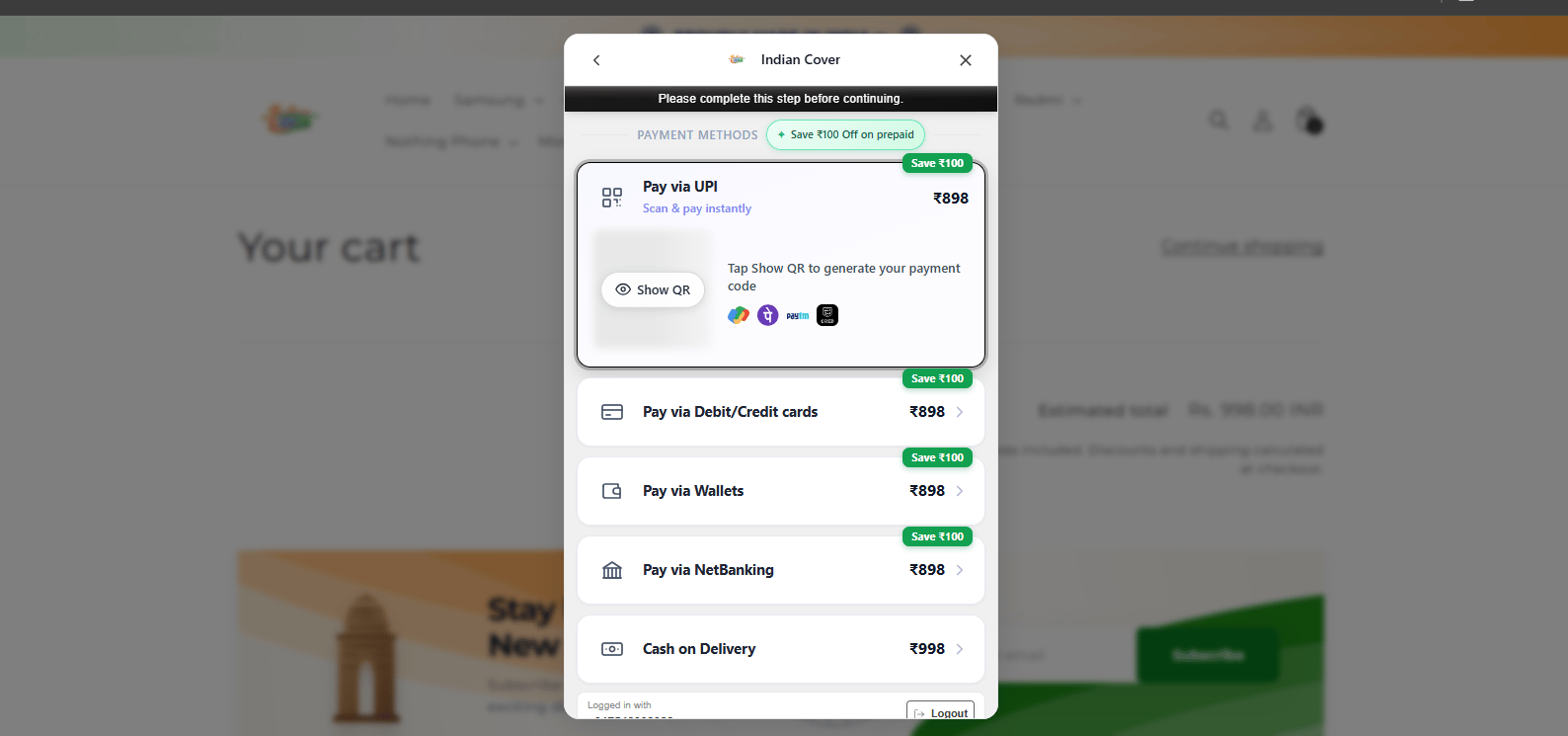
Visit your store and proceed to checkout. When you select a prepaid payment method, you should see:- The prepaid discount displayed.
- The discounted prepaid amount.
- The normal Cash on Delivery amount.