

Step 1: Open the RTO Suite
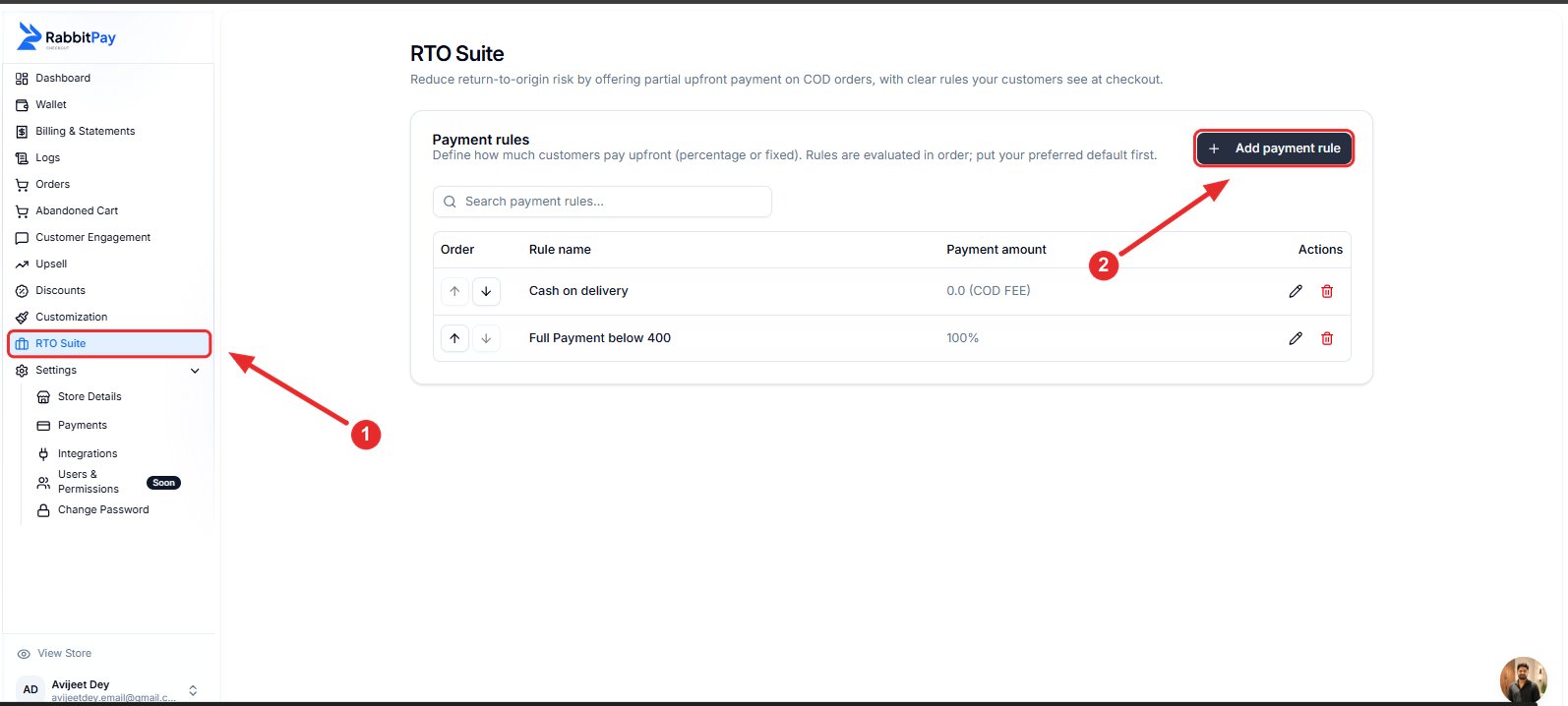
- Log in to your RabbitPay Dashboard.
- Navigate to RTO Suite.
- Click Add Payment Rule.
Step 2: Create a COD Fee Rule
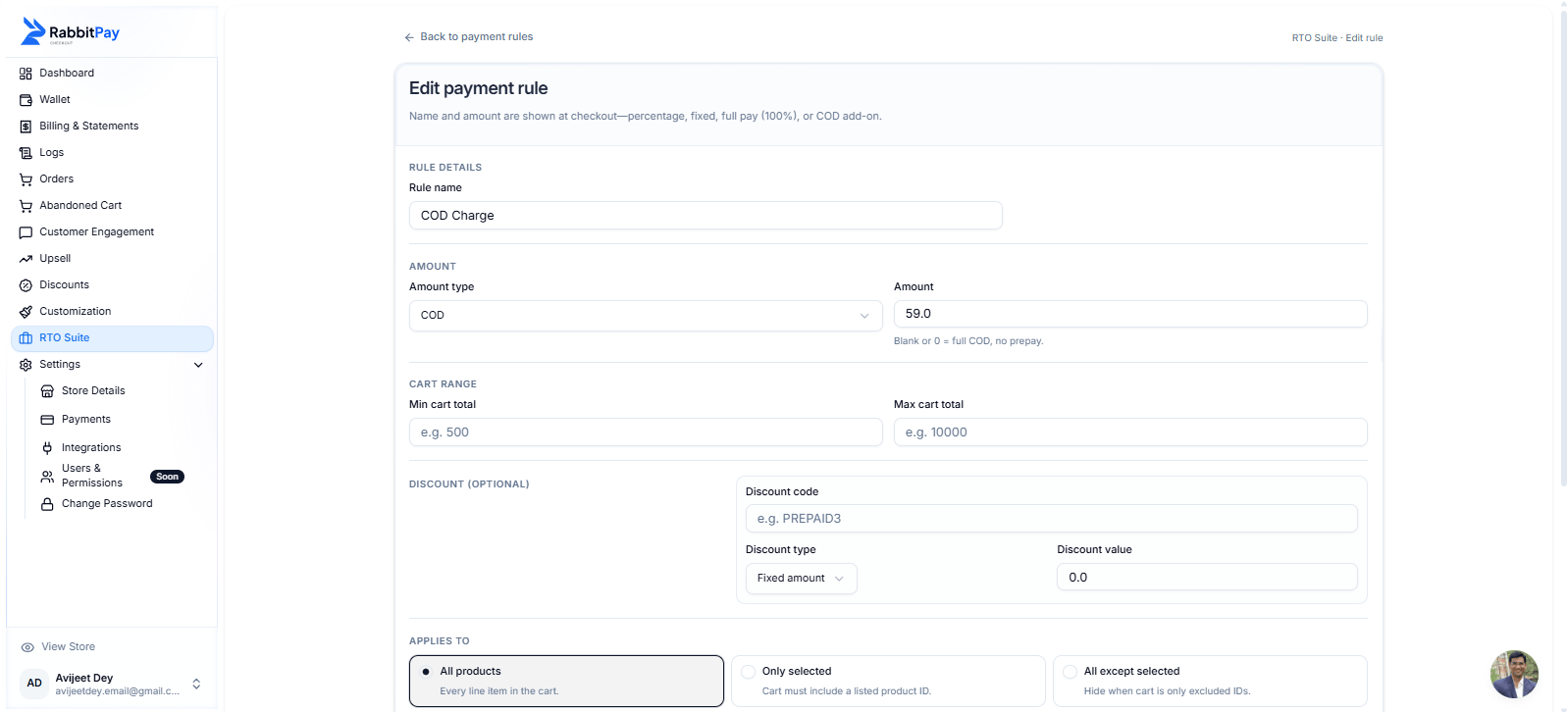
Configure the following fields.Rule Name
Enter a descriptive name. Example- COD Fee
- COD Charge
- Cash on Delivery Fee
Amount Type
Select COD from the dropdown.Amount
Enter the COD fee you want to charge. ExampleNote If the Amount field is left blank or set to 0, no additional COD fee will be charged.
Step 3: Configure Optional Settings
Cart Range
Limit the COD fee to specific order values. Example:- Minimum Cart Total: ₹500
- Maximum Cart Total: ₹10,000
Discount (Optional)
You can optionally apply a Shopify discount code together with the COD rule if required.Applies To
Choose where the COD fee should apply.- All Products – Apply the COD fee across your entire store.
- Only Selected – Apply the COD fee only to selected products.
- All Except Selected – Apply the COD fee to every product except the excluded products.
COD Availability
Enable Show COD as disabled when blocked if you want customers to see COD as unavailable instead of completely hiding the payment option.Zipcode Restrictions
Enable Zipcode Restrictions to control where the COD fee rule is applied. You can:- Restrict specific zipcodes.
- Restrict a range of zipcodes.
- Apply the rule only to selected delivery locations.
Rule Status
Enable Rule Enabled to activate the rule. Click Save Changes once your configuration is complete.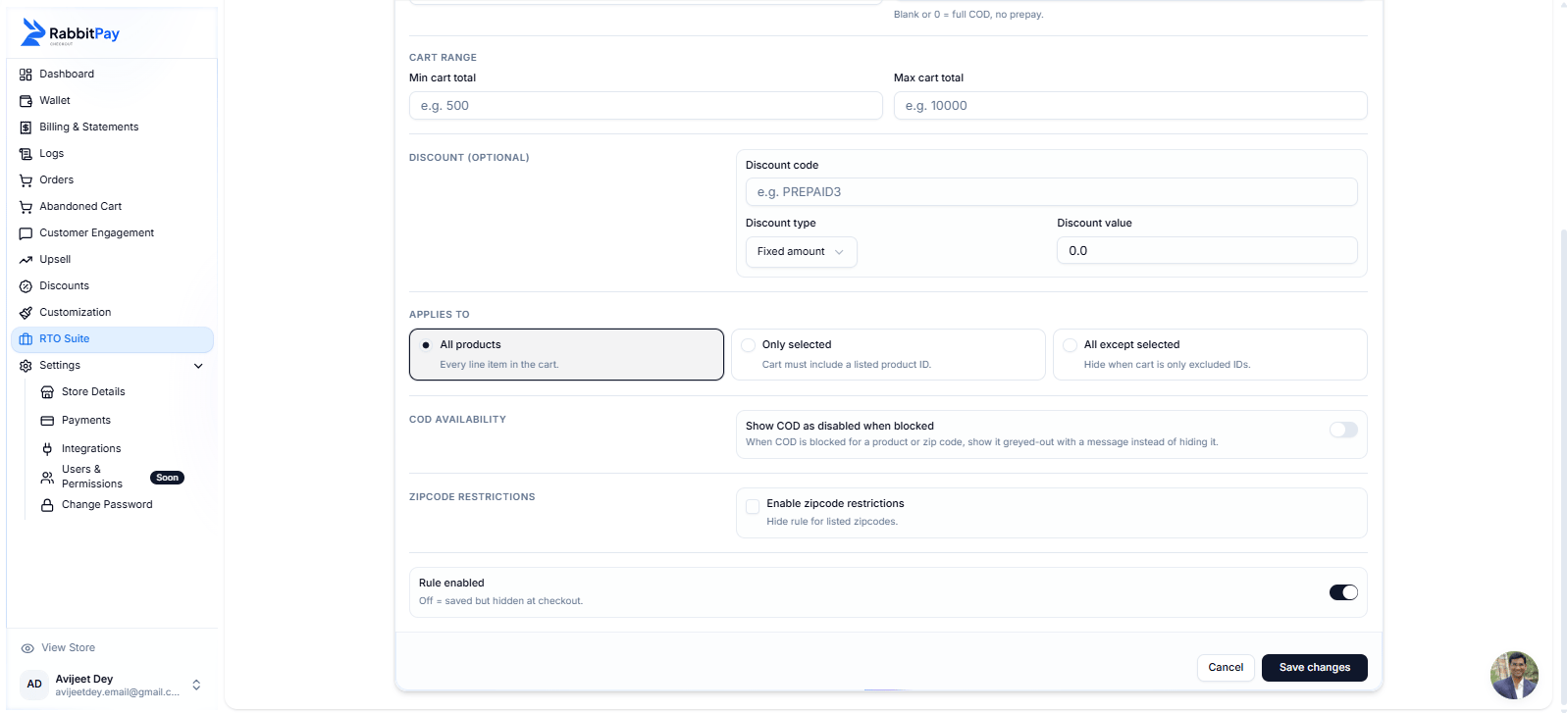
Customer Checkout Experience
When customers choose Cash on Delivery during RabbitPay Checkout, the configured COD fee is automatically added to the order total.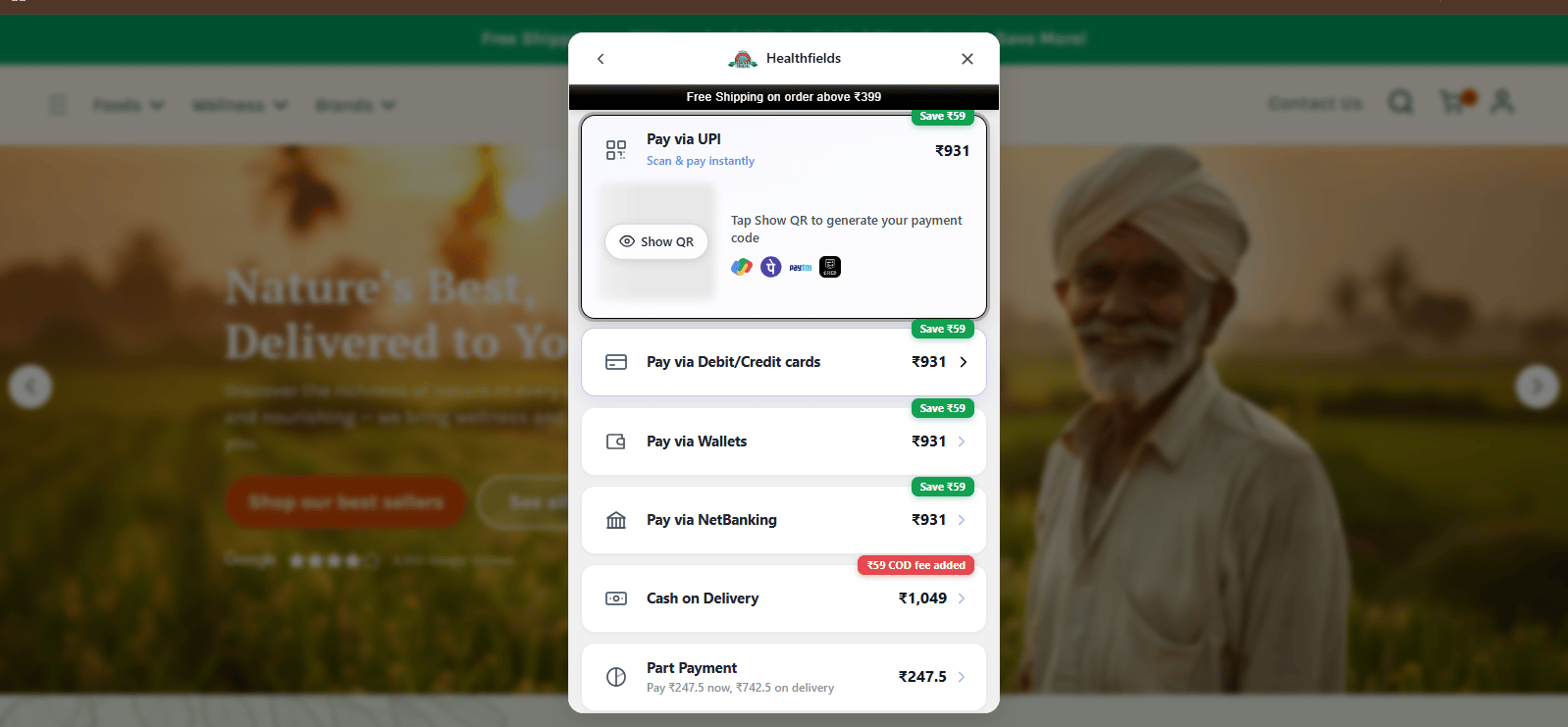
Best Practices
Keep Fees Transparent
Clearly communicate the COD fee during checkout to avoid customer confusion.
Use Cart Ranges
Apply COD fees only for selected order values if required.
Target Specific Products
Charge COD fees only for high-risk or high-value products.
Use Zipcode Restrictions
Apply COD fees only to regions with higher delivery or RTO risk.