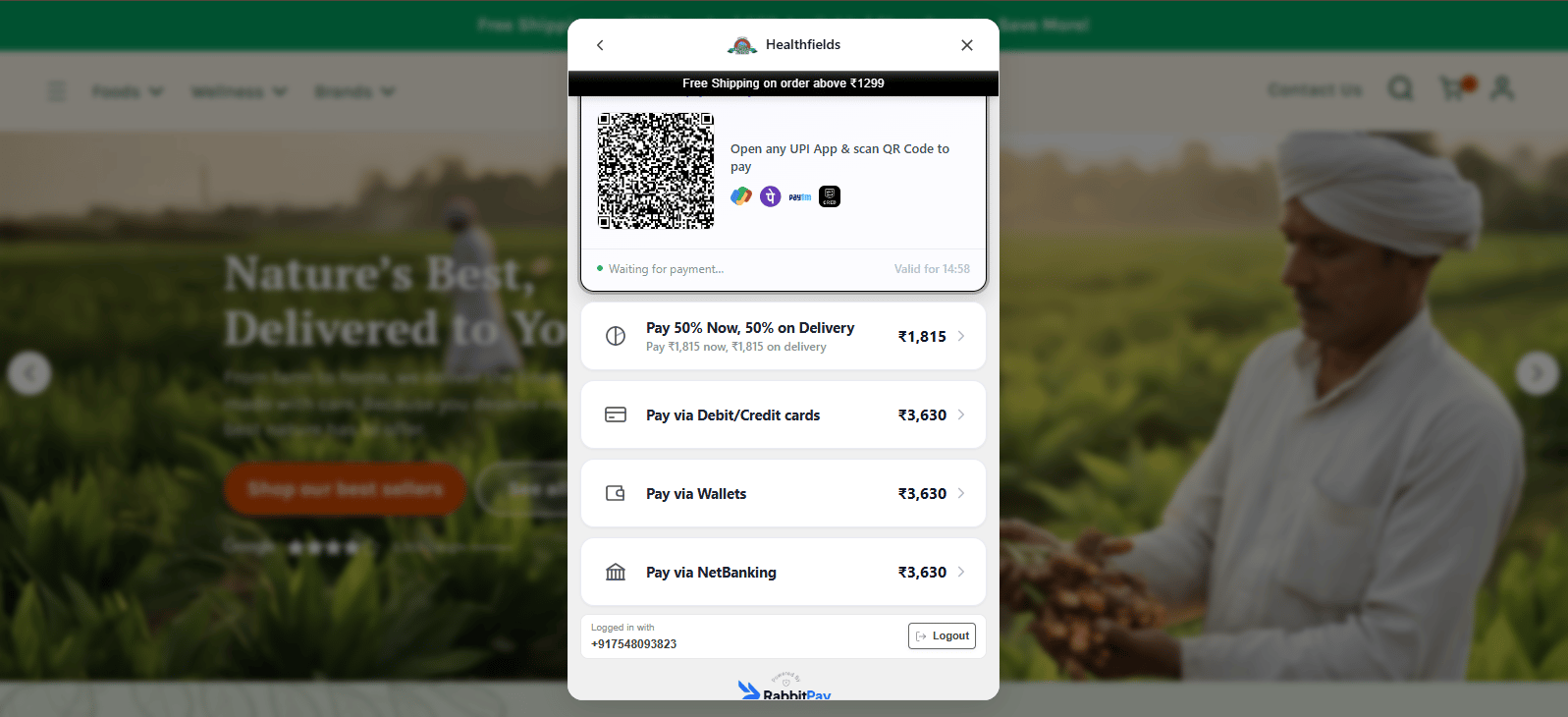

How to Set Different Payment Rules Based on Cart Value
RabbitPay allows you to create payment rules based on the customer’s cart value. For example, you can enable Cash on Delivery (COD) only for orders below a certain amount and automatically hide it for higher-value orders. This helps reduce RTO risk on expensive orders while encouraging customers to choose prepaid payment methods.Why Use Cart Value Rules?
Cart value-based rules help you:- Reduce RTO losses on high-value orders.
- Limit COD for expensive purchases.
- Encourage customers to pay online.
- Apply different payment options for different order values.
- Create a better checkout experience based on order value.
Step 1: Create a Payment Rule
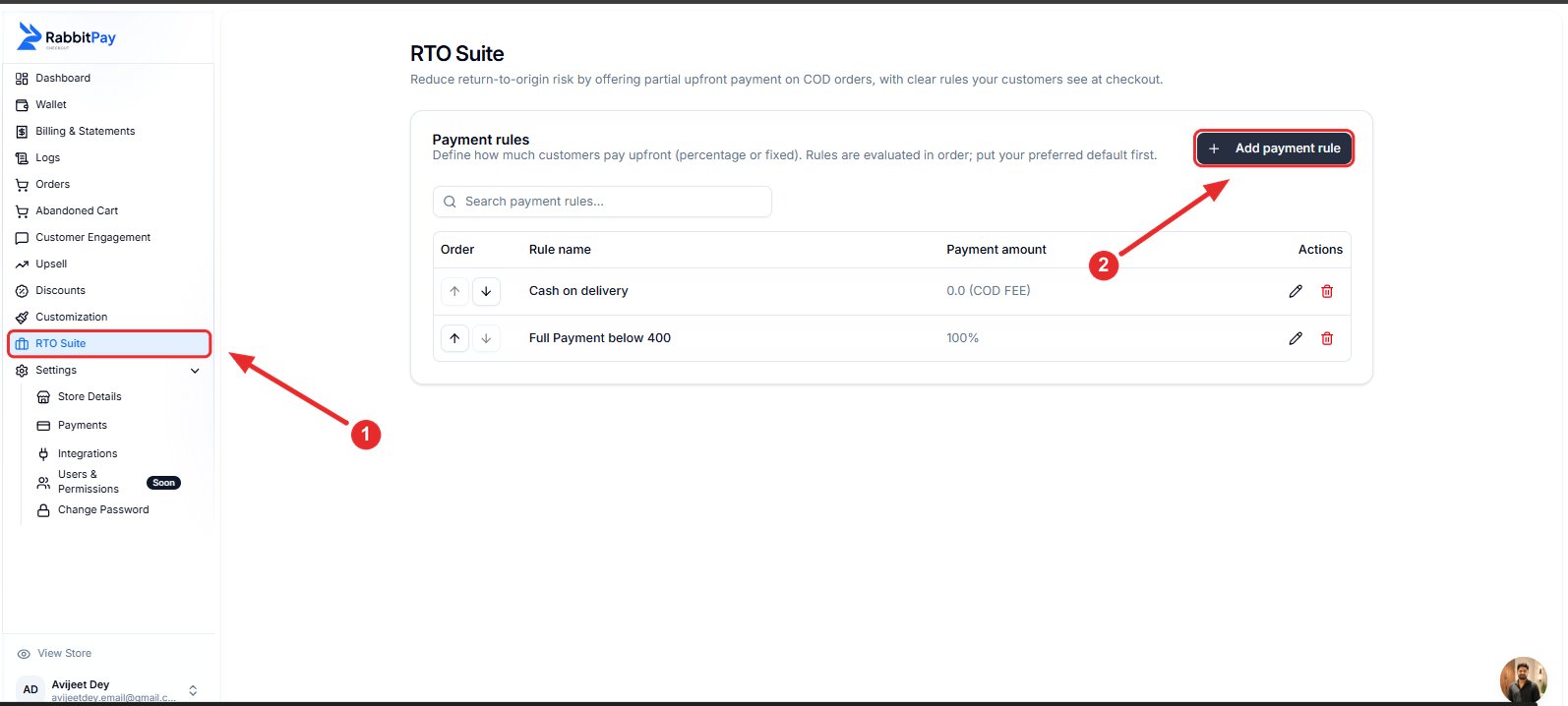
- Log in to your RabbitPay Dashboard.
- Go to RTO Suite.
- Click Add Payment Rule.
Step 2: Configure the Rule
Fill in the payment rule details.
For this example:
This means the rule will apply to all orders above ₹2,900.
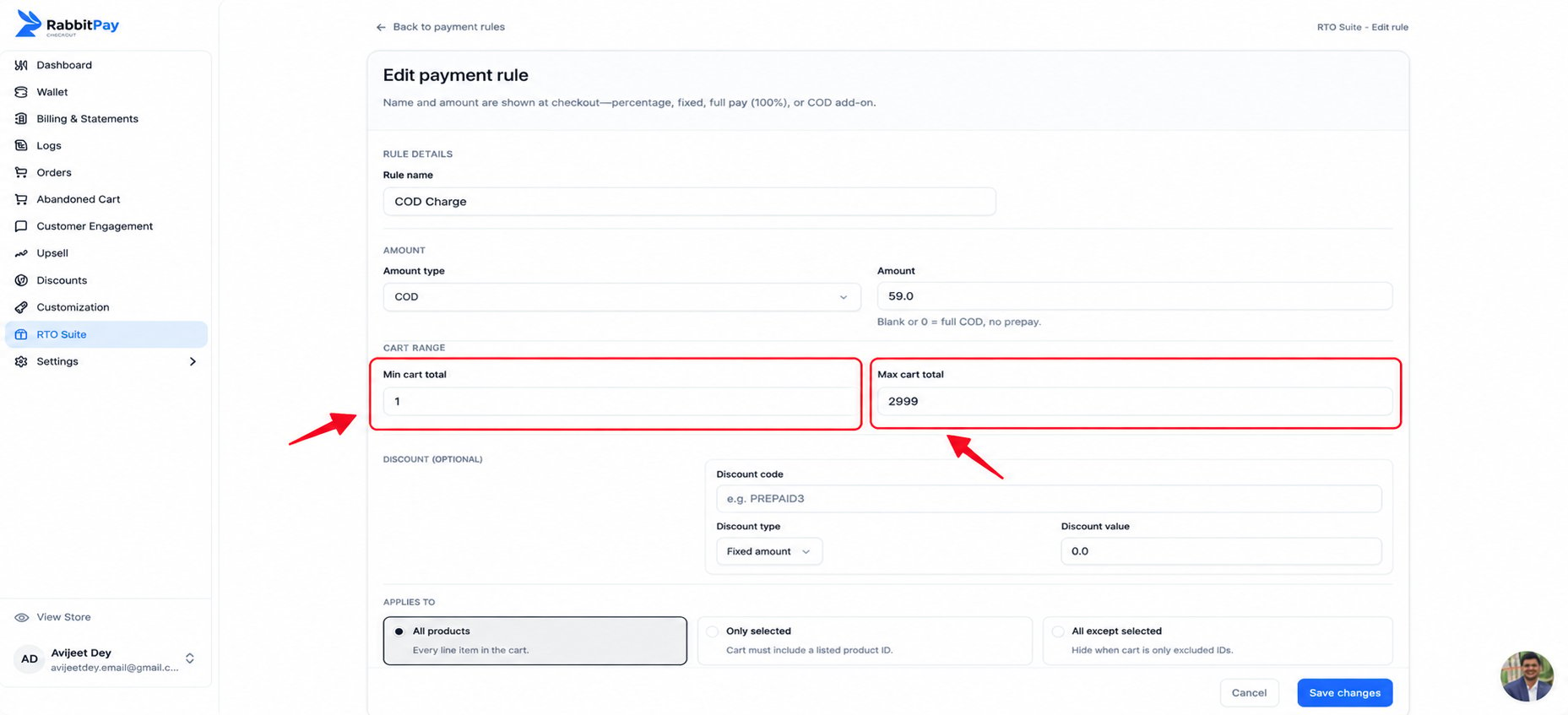
Tip: Leave the Maximum Cart Value empty if you want the rule to apply to all orders above the minimum amount.
Step 3: Save the Rule
- Review your settings.
- Enable Rule Enabled.
- Click Save Changes.
Checkout Example
Cart Value Below ₹2,900
When the cart total is below ₹2,900, the customer can still choose Cash on Delivery (COD) along with the other available payment methods.
Cart Value Above ₹2,900
Once the cart value exceeds ₹2,900, RabbitPay automatically applies the payment rule. The Cash on Delivery (COD) option is removed, and customers can complete their purchase using the available prepaid payment methods.