

- Create a new cart directly using the customer’s mobile number.
- Restore a cart from an existing abandoned checkout.
Option 1: Create a New Cart Using a Mobile Number
You can create a new cart directly from the Abandoned Cart page.Step 1: Open Abandoned Cart
- Log in to your RabbitPay Dashboard.
- Select Abandoned Cart from the left navigation.
- Click Create cart in the top-right corner.
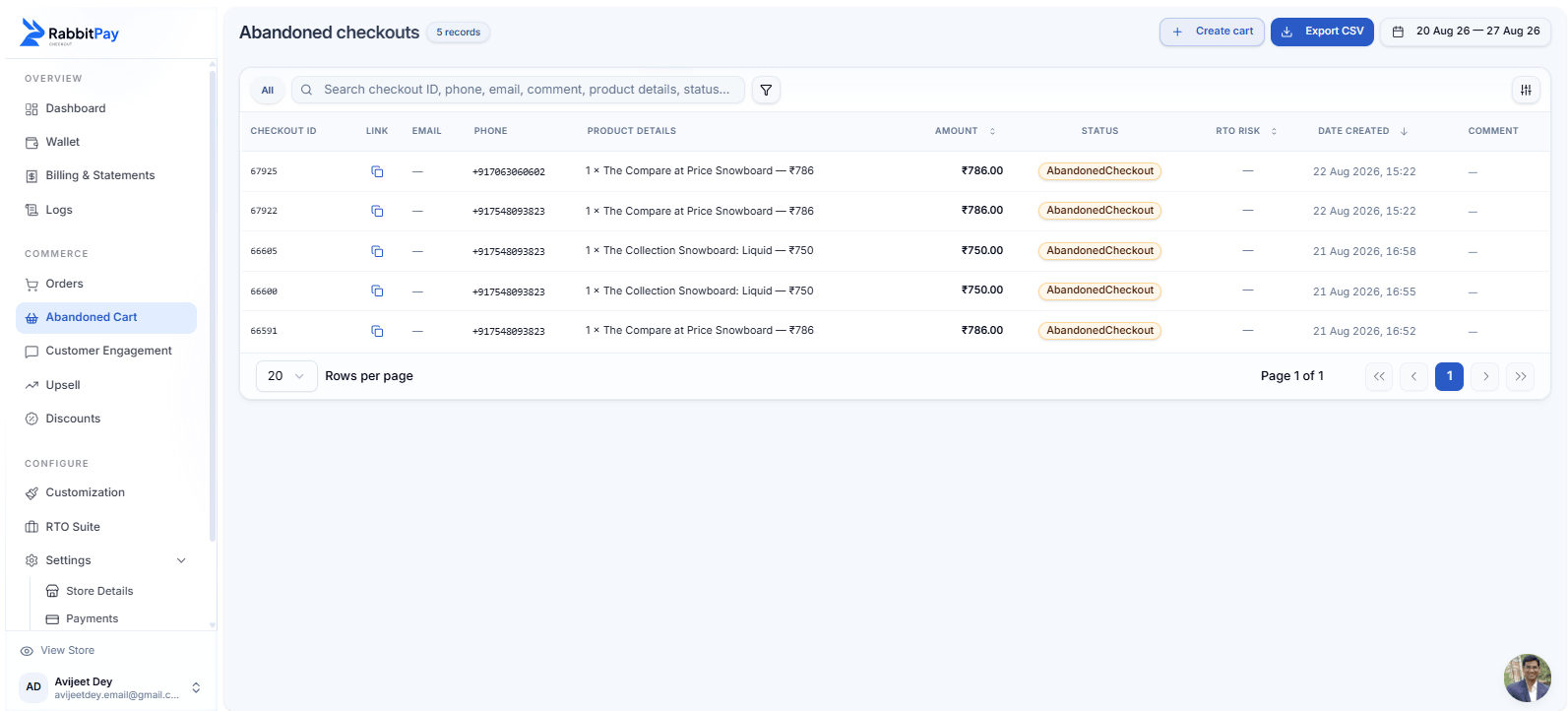
Create a new cart from the Abandoned Cart page.
Step 2: Enter the Customer’s Mobile Number
The Create cart dialog will appear.- Enter the customer’s mobile number.
- Click Continue.
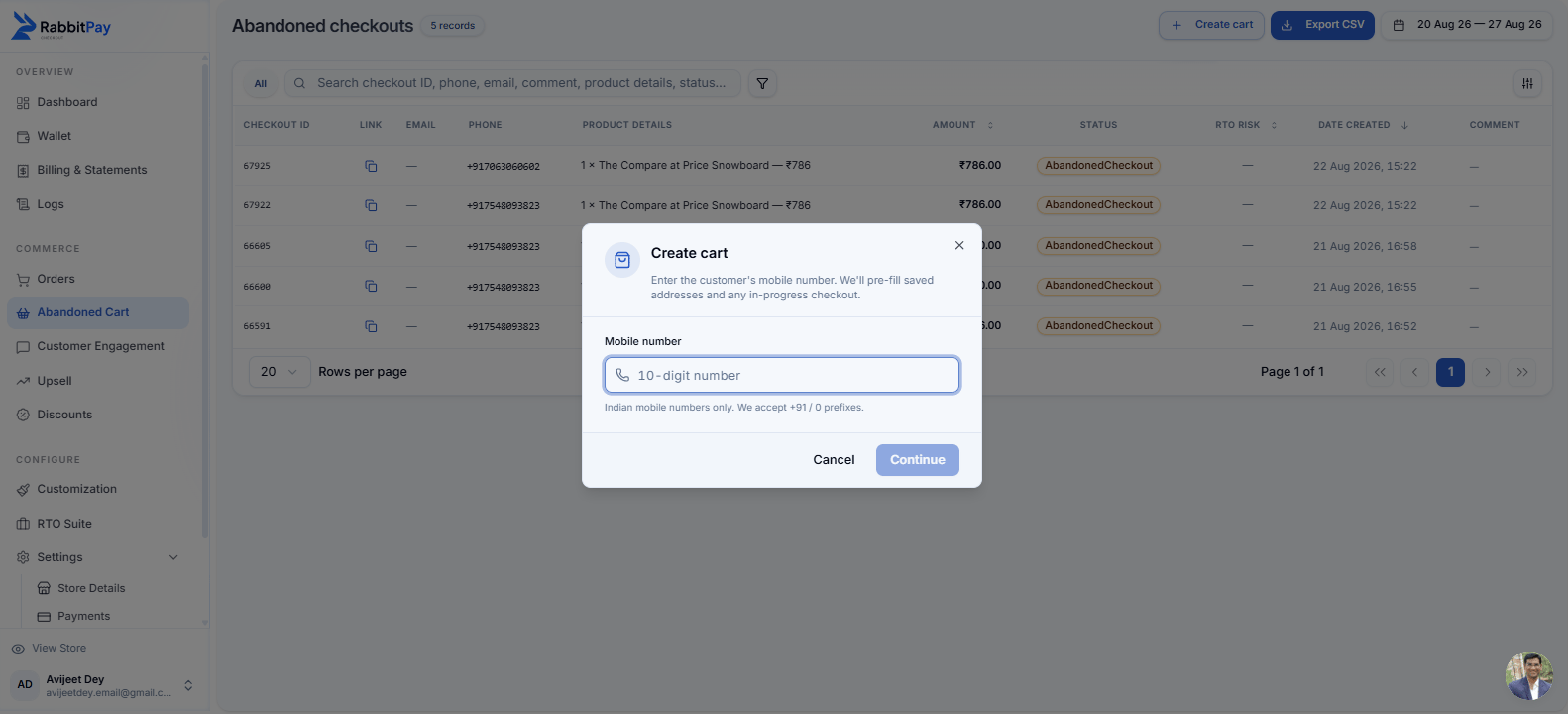
Enter the customer's mobile number to create a cart.
RabbitPay accepts Indian mobile numbers with a +91 or 0 prefix.
Create New Cart
After entering the customer’s mobile number, RabbitPay opens the Create New Cart page. This page allows the merchant to build and configure the customer’s order before placing it.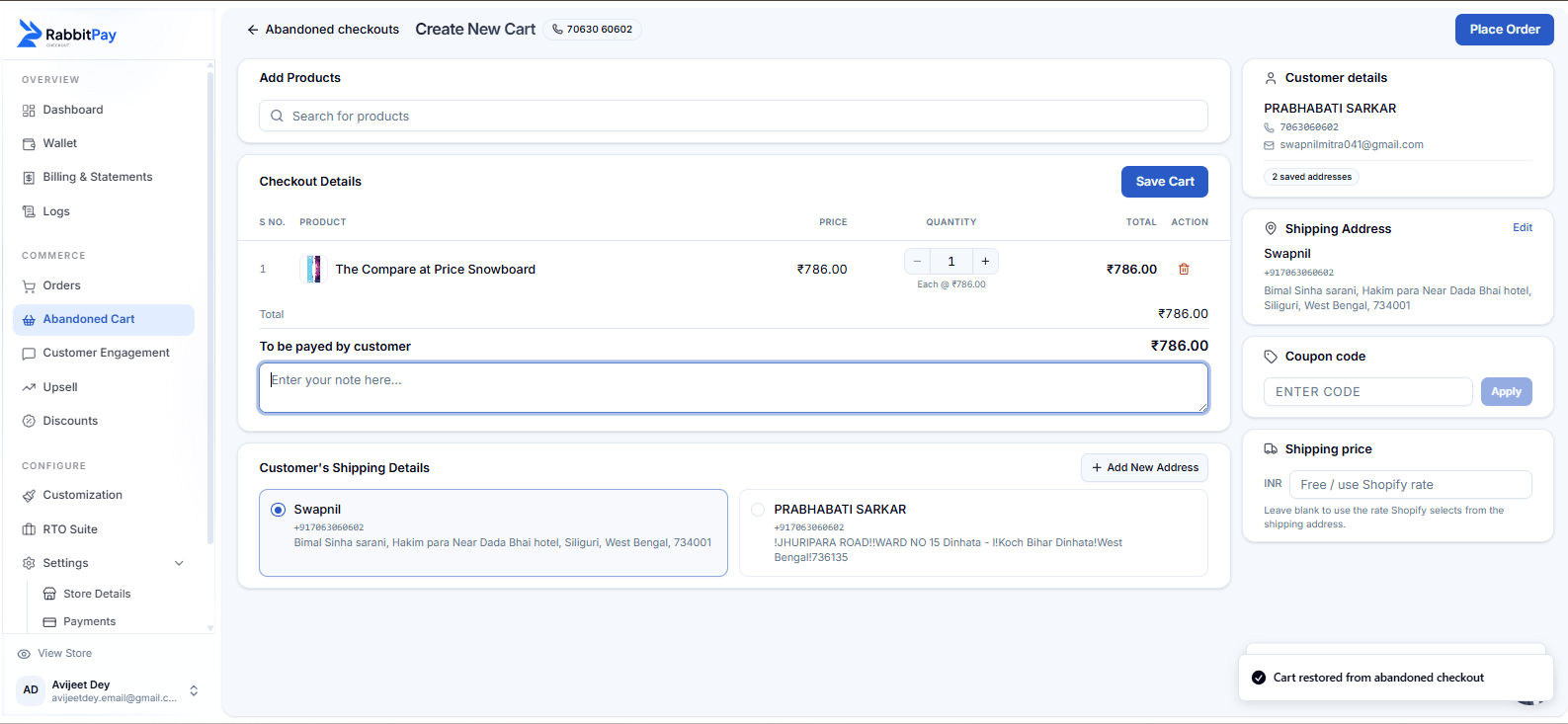
Create New Cart page with products, customer details, shipping address, coupon, and shipping options.
Add Products
Use the Search for products field to find and add products to the cart. Once a product is added, you can review:- Product name
- Price
- Quantity
- Total amount
Checkout Details
The Checkout Details section shows the products currently added to the cart. You can review the order total before saving or placing the order. You can also add a note for the order using the note field.Customer Details
The Customer details section displays the customer’s available information, including:- Customer name
- Mobile number
- Email address
- Number of saved addresses
Shipping Address
The merchant can select the customer’s available shipping address. If the customer has multiple saved addresses, select the appropriate address for the order. You can also:- Edit an existing address.
- Add New Address if the required address is not already saved.
Coupon Code
Merchants can apply a discount to the cart using the Coupon code field.- Enter the customer’s coupon code.
- Click Apply.
- The applicable discount is reflected in the order total.
Shipping Price
Merchants can configure the shipping charge for the order. Enter a shipping amount in the Shipping price field. You can also leave the field blank to use the shipping rate selected by Shopify for the customer’s shipping address.Shipping rates depend on the shipping configuration available for the Shopify store.
Save or Place the Order
After reviewing the cart details, customer information, shipping address, and pricing:- Select Save Cart to save the cart for later.
- Select Place Order to proceed with the order.
Option 2: Create a Cart from an Existing Abandoned Checkout
If the customer already has an abandoned checkout, you can create a cart directly from that checkout.Step 1: Open the Abandoned Checkout
- Go to Abandoned Cart.
- Find the customer’s abandoned checkout.
- Click the checkout to open its details.
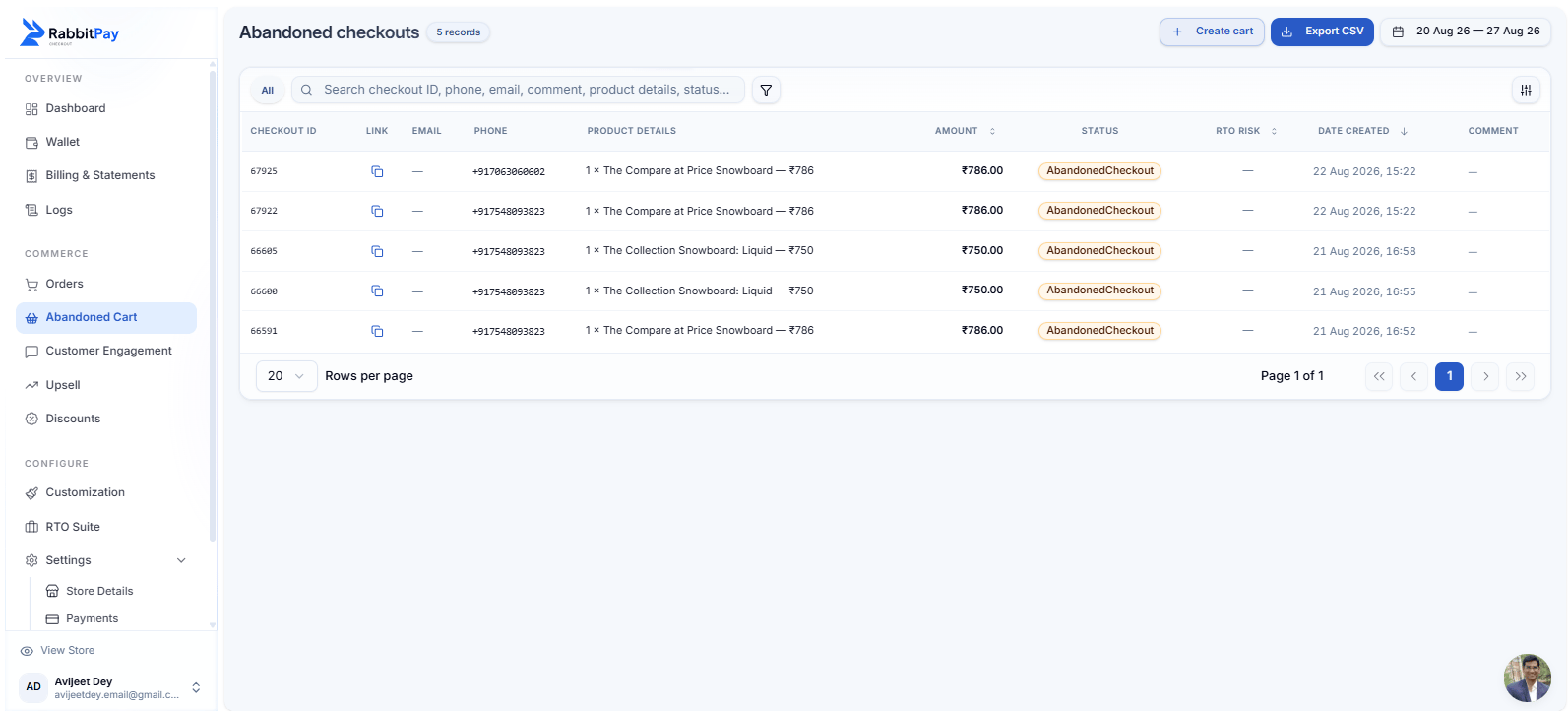
Abandoned checkouts available in RabbitPay.
Step 2: Select Create Cart
The checkout details panel displays the customer’s information, products, and checkout total. Click Create cart.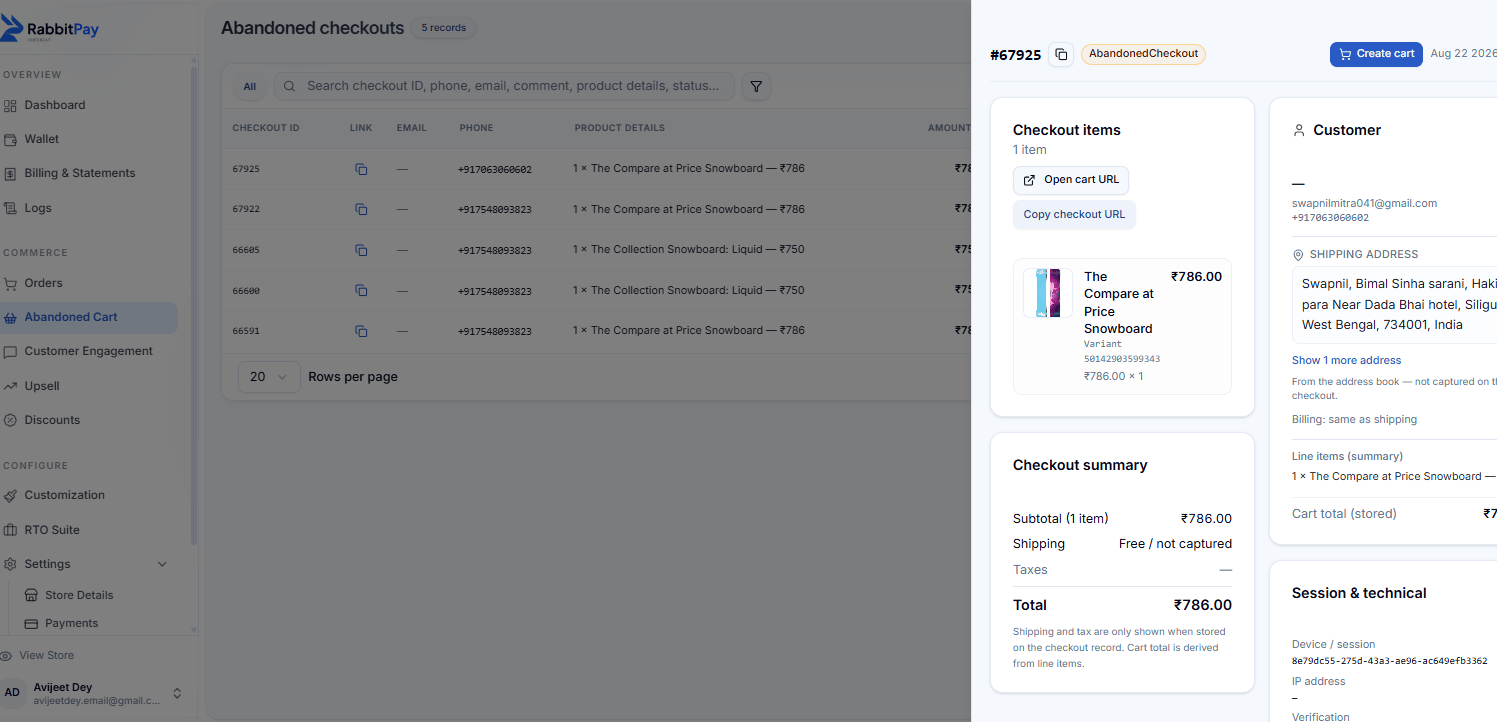
Create a cart directly from an abandoned checkout.
What Can Merchants Configure?
When creating a cart, merchants can manage the main order details from a single page:Products
Add products, change quantities, review prices, or remove products from the cart.
Customer Information
Review the customer’s name, phone number, email address, and saved information.
Shipping Address
Select a saved address, edit an address, or add a new shipping address.
Coupon Code
Apply an eligible coupon code to the customer’s cart.
Shipping Price
Add a shipping charge or use the shipping rate configured in Shopify.
Order Note
Add an internal note or additional information related to the order.
Why Use Create Cart?
Support-Assisted Ordering
Help customers complete their purchase when they need assistance during checkout.
Recover Abandoned Purchases
Restore abandoned checkout information instead of rebuilding the order manually.
Faster Order Creation
Create and configure a customer’s cart from the RabbitPay Dashboard.
Flexible Cart Management
Modify products, quantities, addresses, coupons, shipping, and notes before placing the order.