> ## Documentation Index
> Fetch the complete documentation index at: https://docs.rabbitpay.ai/llms.txt
> Use this file to discover all available pages before exploring further.
# How to Disable Cash on Delivery for Specific Products
> Restrict Cash on Delivery for specific products in your Shopify store using RabbitPay payment rules.
Use RabbitPay payment rules to disable Cash on Delivery (COD) for specific products while keeping COD available for the rest of your store.
This is useful when you want to restrict COD for products that are high-value, fragile, made-to-order, or have a higher risk of returns.
***
## Step 1: Open RTO Suite
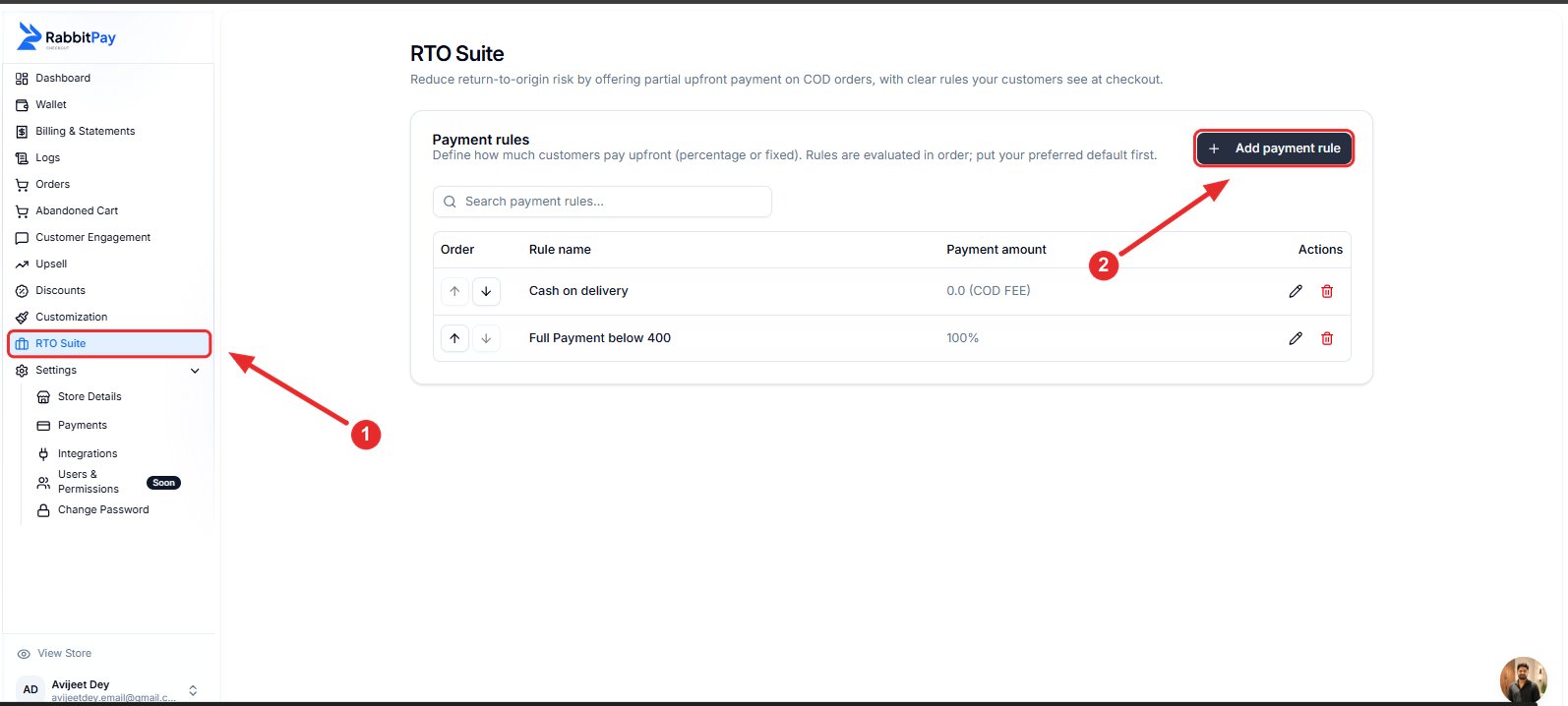
1. Log in to your RabbitPay Dashboard.
2. Go to **RTO Suite**.
3. Click **Add payment rule**.
 ***
## Step 2: Configure the COD Rule
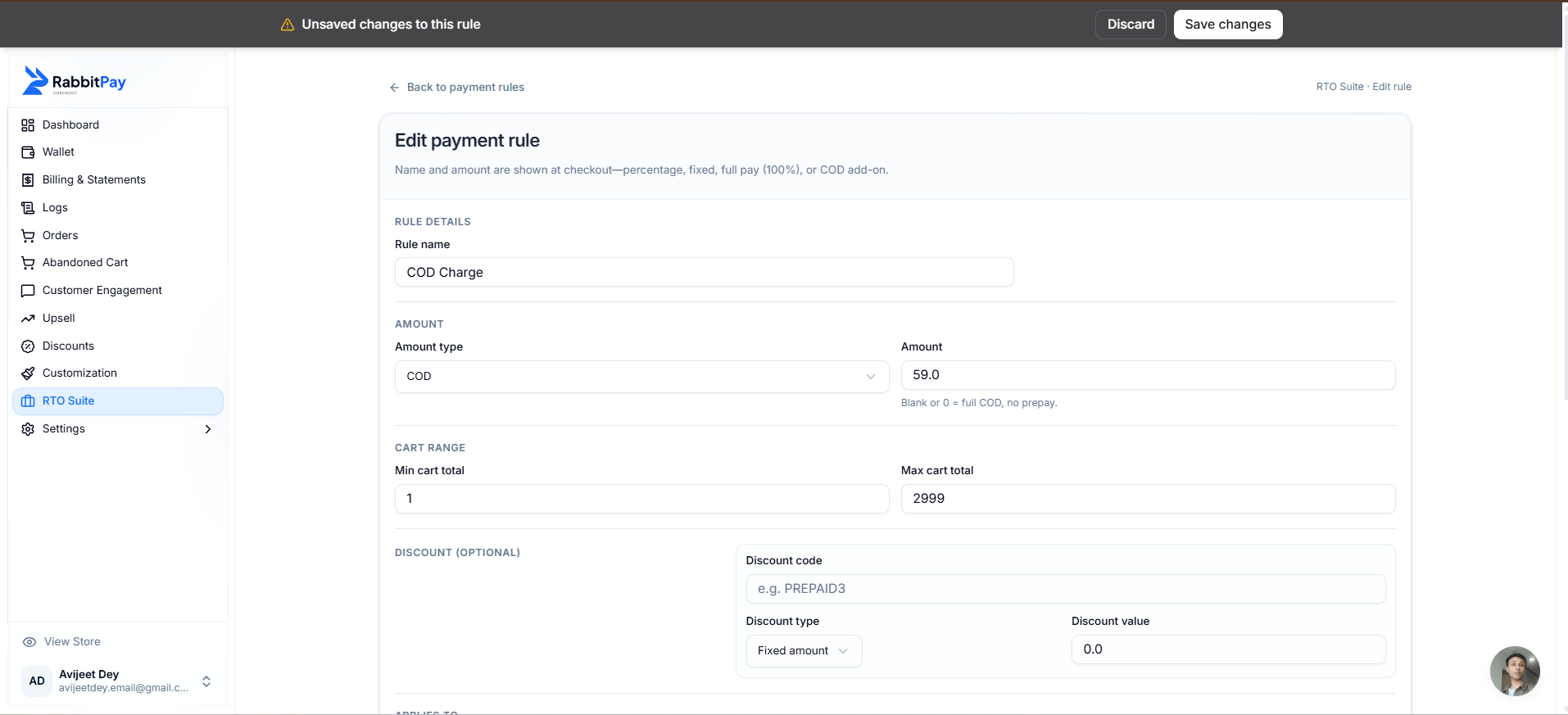
Enter the following details (example) :
| Field | Value |
| ----------- | ------------------------------ |
| Rule Name | Cash on delivery |
| Amount Type | COD |
| Amount | Enter the COD fee, if required |
If you want to charge a COD fee for eligible products, enter the fee amount.
For example:
* Amount Type: **COD**
* Amount: **₹59**
If you do not want to charge an additional COD fee, you can leave the amount as required by your rule configuration.
***
## Step 2: Configure the COD Rule
Enter the following details (example) :
| Field | Value |
| ----------- | ------------------------------ |
| Rule Name | Cash on delivery |
| Amount Type | COD |
| Amount | Enter the COD fee, if required |
If you want to charge a COD fee for eligible products, enter the fee amount.
For example:
* Amount Type: **COD**
* Amount: **₹59**
If you do not want to charge an additional COD fee, you can leave the amount as required by your rule configuration.
 ***
## Step 3: Set the Rule to Exclude Selected Products
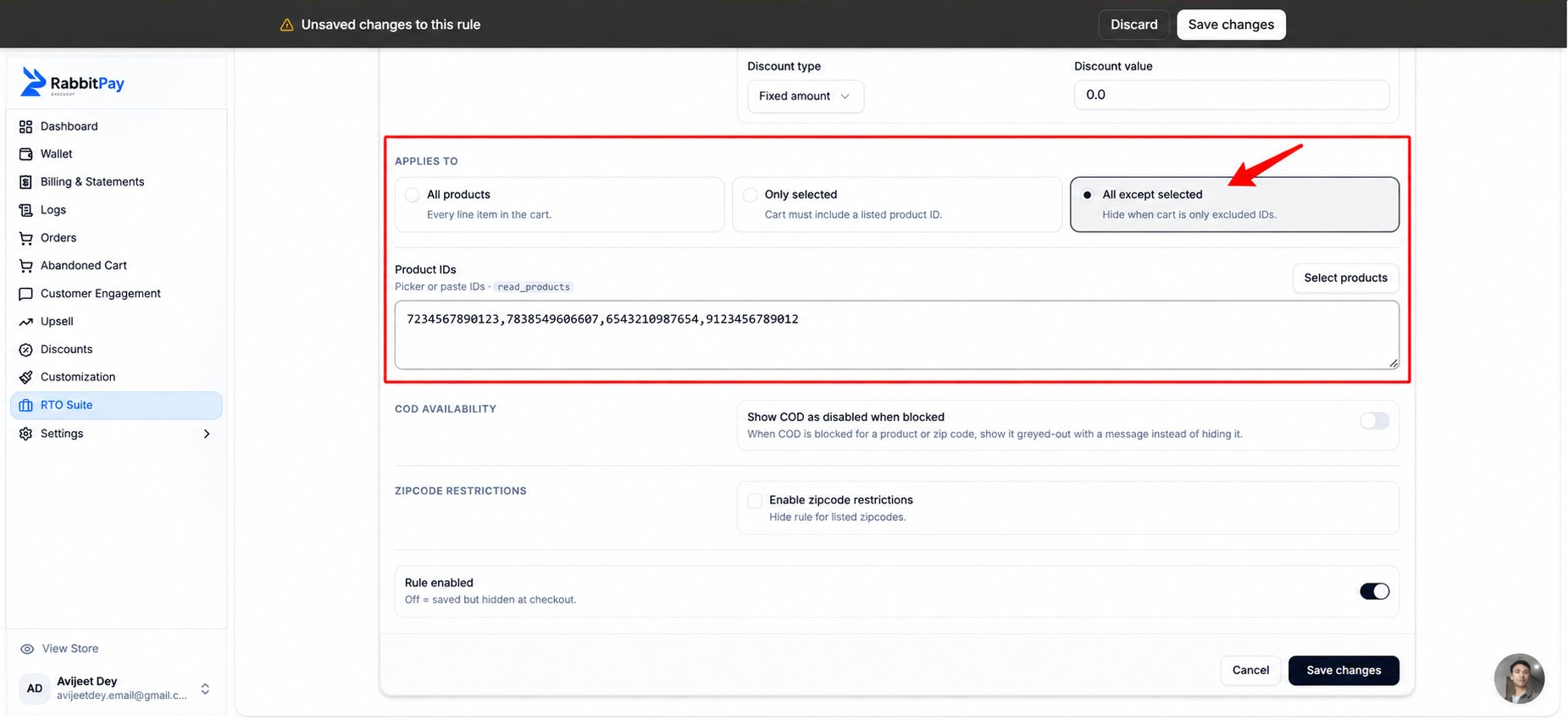
Under **Applies To**, select:
**All except selected**
This allows you to keep the COD rule active for your store while excluding specific products from COD.
***
## Step 3: Set the Rule to Exclude Selected Products
Under **Applies To**, select:
**All except selected**
This allows you to keep the COD rule active for your store while excluding specific products from COD.
 ***
## Step 4: Select the Products
You can add the products you want to exclude from COD in two ways.
### Option 1: Enter Product IDs Manually
Enter the Shopify Product IDs in the **Product IDs** field.
For example:
```text theme={null}
7234567890123, 7838549606607, 6543210987654
```
### Option 2: Select Products
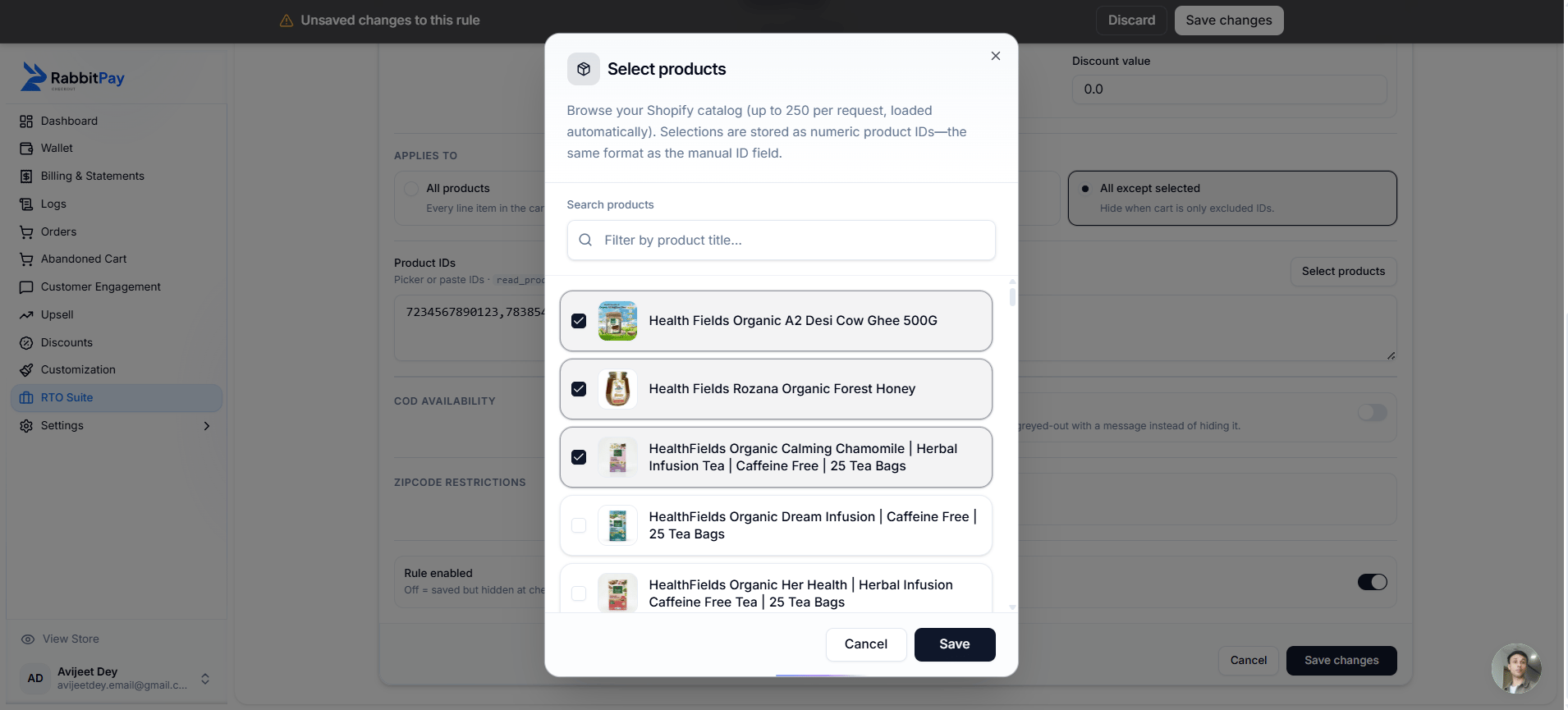
Click **Select products** and choose the products you want to exclude from COD.
1. Search for a product by name.
2. Select the required products.
3. Click **Save**.
RabbitPay will add the selected products to the **Product IDs** field.
***
## Step 4: Select the Products
You can add the products you want to exclude from COD in two ways.
### Option 1: Enter Product IDs Manually
Enter the Shopify Product IDs in the **Product IDs** field.
For example:
```text theme={null}
7234567890123, 7838549606607, 6543210987654
```
### Option 2: Select Products
Click **Select products** and choose the products you want to exclude from COD.
1. Search for a product by name.
2. Select the required products.
3. Click **Save**.
RabbitPay will add the selected products to the **Product IDs** field.
 ***
## Step 5: Save the Rule
Review your settings and click **Save changes**.
Make sure the rule is enabled before saving.
***
## Result
When a customer adds one of the excluded products to their cart, **Cash on Delivery will not be available at checkout**.
Other payment methods such as UPI, cards, wallets, and Net Banking will remain available.
***
## Step 5: Save the Rule
Review your settings and click **Save changes**.
Make sure the rule is enabled before saving.
***
## Result
When a customer adds one of the excluded products to their cart, **Cash on Delivery will not be available at checkout**.
Other payment methods such as UPI, cards, wallets, and Net Banking will remain available.
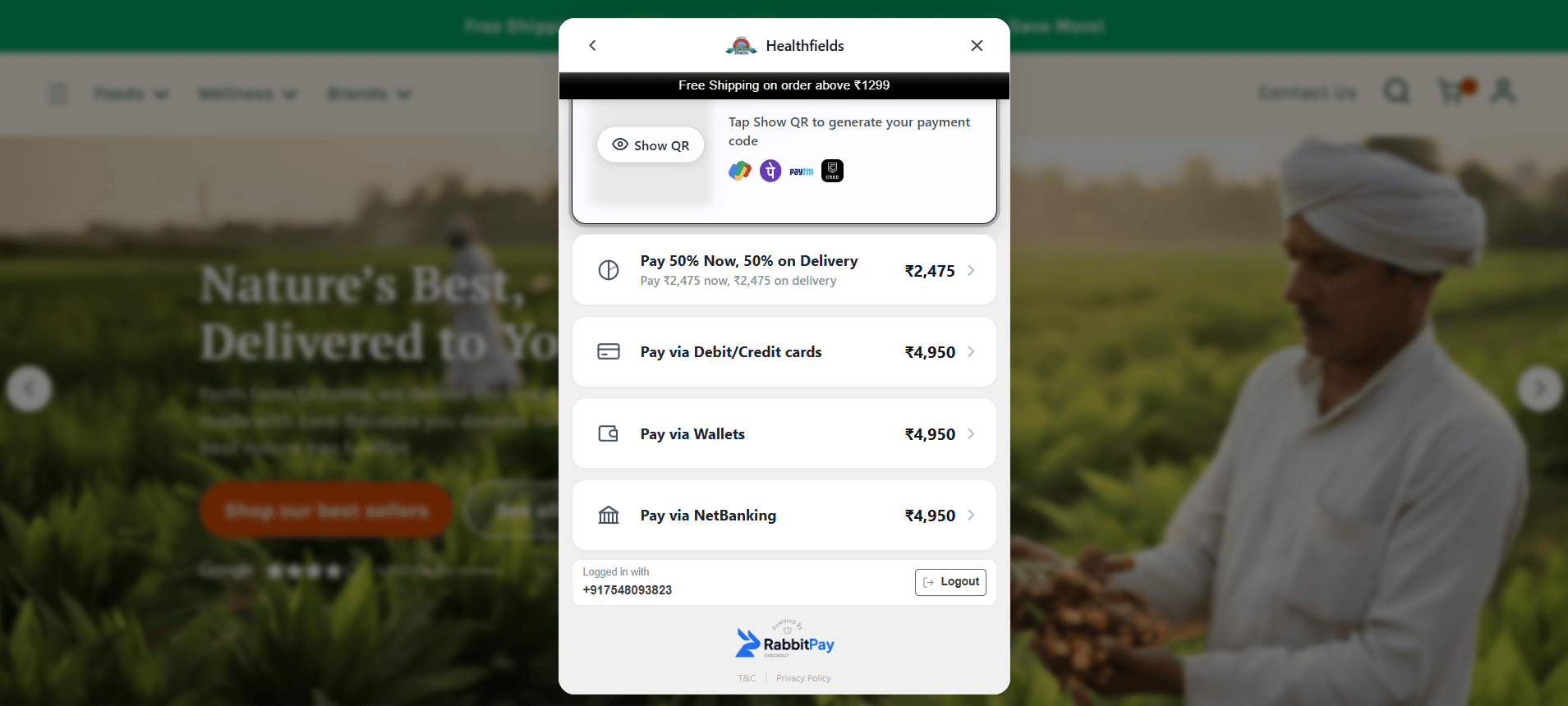 For example, if you exclude a product from COD, the customer will see the available prepaid payment methods, but the **Cash on Delivery** option will not appear.
***
## Why Disable COD for Specific Products?
Restricting COD for selected products can help you:
* Reduce RTO on high-risk products.
* Avoid COD orders for expensive products.
* Protect fragile or made-to-order products.
* Encourage customers to use prepaid payment methods.
* Keep COD available for products where it works well.
***
## Example
Suppose you sell three products:
| Product | COD |
| --------- | --------- |
| Product A | Available |
| Product B | Available |
| Product C | Disabled |
If **Product C** is added to the excluded product list, customers will not see the COD option when purchasing that product.
***
## Result
Your selected products are now excluded from the COD rule, while COD remains available for the other eligible products in your store.
> **Note:** RabbitPay evaluates payment rules in order. Make sure your product-specific rule is placed correctly in the payment rule list so that it is not overridden by another broader rule.
For example, if you exclude a product from COD, the customer will see the available prepaid payment methods, but the **Cash on Delivery** option will not appear.
***
## Why Disable COD for Specific Products?
Restricting COD for selected products can help you:
* Reduce RTO on high-risk products.
* Avoid COD orders for expensive products.
* Protect fragile or made-to-order products.
* Encourage customers to use prepaid payment methods.
* Keep COD available for products where it works well.
***
## Example
Suppose you sell three products:
| Product | COD |
| --------- | --------- |
| Product A | Available |
| Product B | Available |
| Product C | Disabled |
If **Product C** is added to the excluded product list, customers will not see the COD option when purchasing that product.
***
## Result
Your selected products are now excluded from the COD rule, while COD remains available for the other eligible products in your store.
> **Note:** RabbitPay evaluates payment rules in order. Make sure your product-specific rule is placed correctly in the payment rule list so that it is not overridden by another broader rule.